Download and Install
Download
Builds are published on the Releases page of the repository. Each version provides Windows and macOS packages:
| Package | File | Use when |
|---|---|---|
| Windows installer | FOrcaSlicer_Windows_Installer_V2.3.2-fos.8.5.6.exe |
Windows - normal use. Registers file associations and creates a desktop shortcut. |
| Windows portable | FOrcaSlicer_Windows_Portable_V2.3.2-fos.8.5.6.zip |
Windows - running from a USB drive, or keeping FOrcaSlicer isolated from an existing install. |
| macOS | FOrcaSlicer-2.3.2-fos.8.5.6-macos-universal.dmg |
macOS 12 (Monterey) or later, Intel or Apple Silicon - a universal build. |
Download link: https://github.com/jiyang1018/FOrcaSlicer/releases
网盘分享的文件 https://pan.baidu.com/s/1FtW5jRz7YiC9mqLDZ2L_2w?pwd=598d
As of 8.5.6 there is a macOS build (universal, Intel + Apple Silicon) alongside Windows. There is no Linux build yet - build from source.
Requirements
- Printer: Snapmaker U1. FOrcaSlicer is not tested on any other machine.
- OS: Windows 10 or 11 (64-bit), or macOS 12 (Monterey) or later.
- FOrcaSlicer keeps its own settings directory and does not conflict with Snapmaker Orca -
%APPDATA%\FOrcaSlicer\on Windows,~/Library/Application Support/FOrcaSlicer/on macOS.
Installing (Windows)
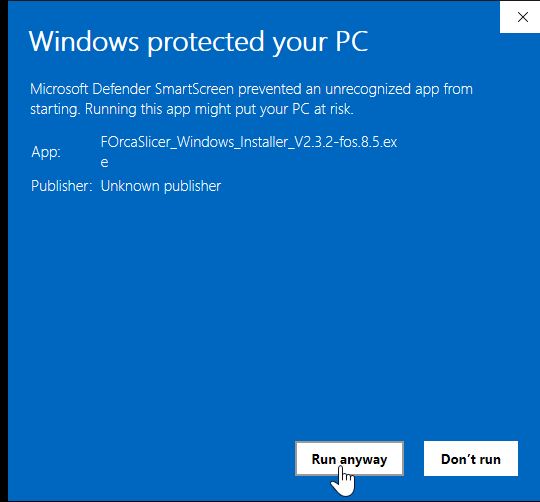
"Windows protected your PC"
When you run the installer, Windows will show a SmartScreen warning. Click More info, then Run anyway.
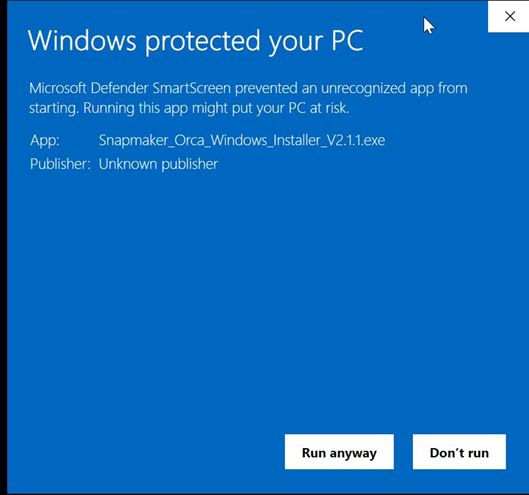
This is not specific to FOrcaSlicer. Snapmaker Orca's own installer produces the same warning:
Install path
After the user agreement, the installer asks where to install.
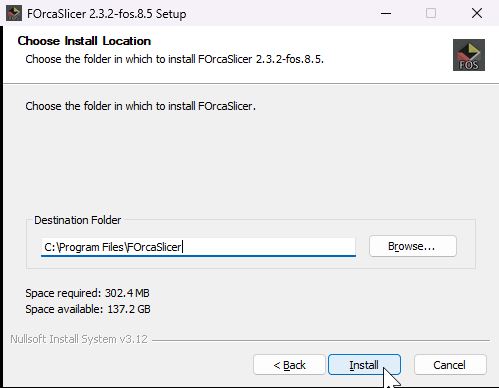
You are free to change this - but keep it separate from your Snapmaker Orca install directory. The two are separate applications and should not share a folder.
Installing (macOS)
The macOS build is a universal DMG (Intel + Apple Silicon). Open it and drag FOrcaSlicer to Applications.
The app is not signed or notarized - the project has no Apple Developer certificate - so the first launch is blocked with "FOrcaSlicer can't be opened because Apple cannot check it for malicious software." That message is expected and does not mean the download is damaged. After moving the app to Applications, clear the quarantine flag once from Terminal:
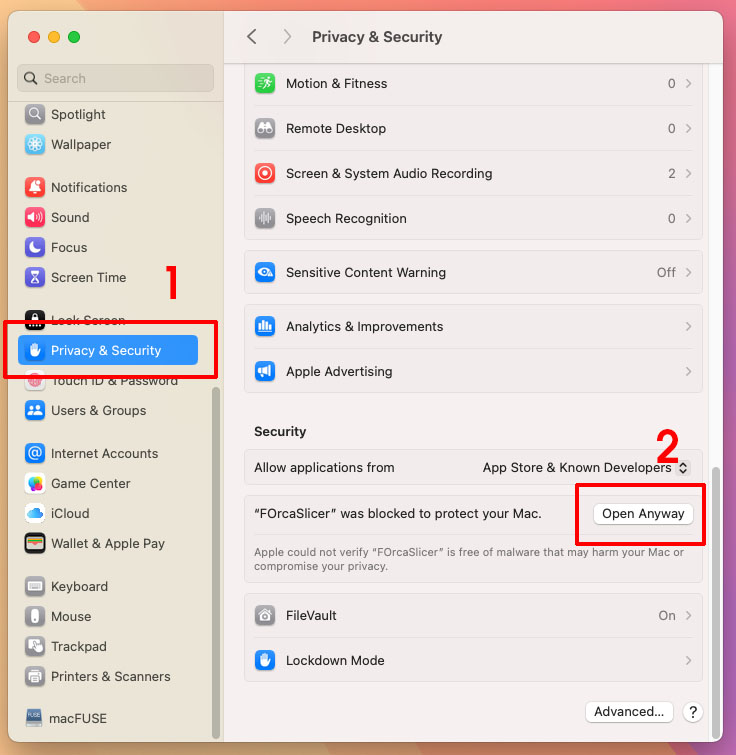
Alternatively, try to open the app, then go to System Settings -> Privacy & Security and click Open Anyway. On macOS 15 and later this is the only route through the UI - Apple removed the old Control-click -> Open bypass.
Next steps
With FOrcaSlicer installed, continue to First Launch for the one-time first-run prompts and for setting up mixed nozzles.
Uninstalling
Windows: use Add or remove programs, or run the uninstaller in the install directory.
macOS: drag FOrcaSlicer from Applications to the Trash.
Your settings directory is left in place either way - %APPDATA%\FOrcaSlicer\ on Windows, ~/Library/Application Support/FOrcaSlicer/ on macOS. Delete that folder to remove all presets and preferences.